1. Drop your file
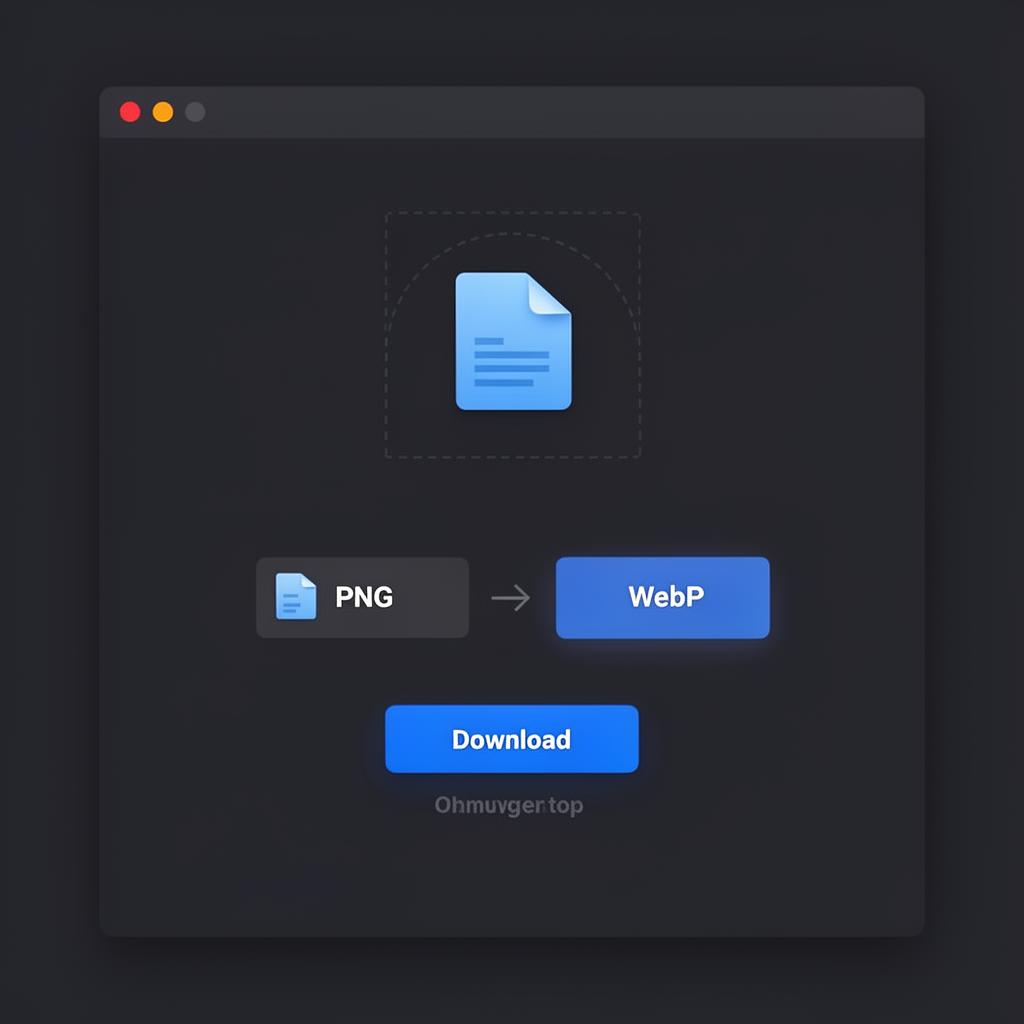
Open any Morphix converter and drag your file into the dashed drop zone, or click it to open a file picker. Most formats are auto-detected from the file's extension and contents — you don't need to tell Morphix what you uploaded.
A 90-second walkthrough of converting images, audio and video with Morphix. Everything happens inside your browser — your files never get uploaded.
Morphix — In-browser file converter
Click play to watch the 90-second guide
Open any Morphix converter and drag your file into the dashed drop zone, or click it to open a file picker. Most formats are auto-detected from the file's extension and contents — you don't need to tell Morphix what you uploaded.
Choose what you want out: JPG, PNG, WebP, MP4, MP3, GIF, and more. For images, you can also adjust quality to trade file size against fidelity. For audio and video, Morphix uses ffmpeg.wasm under the hood, so codecs are real — not a thin wrapper.
Conversion runs in a Web Worker so the page stays responsive. When it's done, click Download — the converted file is generated as a blob in memory and saved directly to your device. Nothing was uploaded, nothing was logged.